


How to Upgrade Laptop RAM & SSD: Complete DIY Step-by-Step
A step-by-step Malaysian guide to upgrading laptop RAM and SSD yourself: check compatibility, pick the right DDR4/DDR5 SO-DIMM and NVMe drive, avoid common…
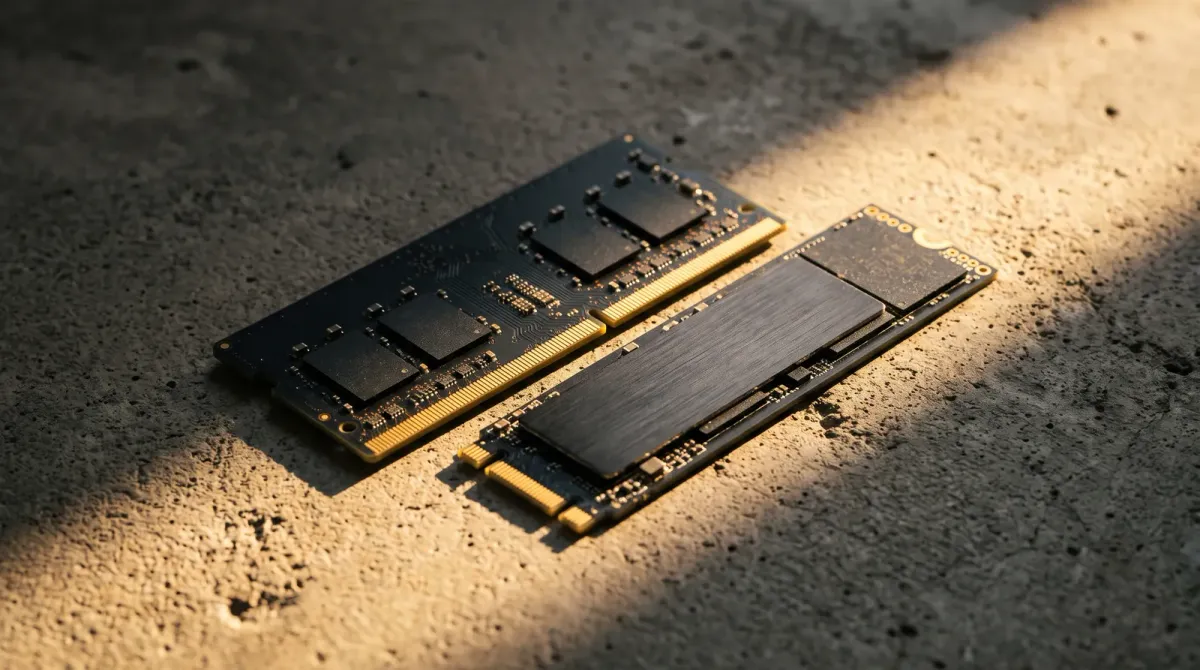
This guide walks you through upgrading your laptop's RAM and SSD yourself, so you can fix a slow machine for less than the price of a new one — and know exactly what parts to buy in Malaysia.
What you need to know before you open the laptop
Start by confirming what your laptop actually accepts. Manufacturers publish upgrade manuals for each model — ASUS, for example, points owners to the support site and the model's Manual & Document section before any RAM or SSD work. Lenovo lists the same common upgrades: swapping a hard drive for a higher-capacity one, adding SSD storage and increasing memory.
Match the memory type to your machine. DDR4 and DDR5 SO-DIMMs are not interchangeable, and laptops use the shorter SO-DIMM form factor, not desktop DIMMs. Check whether RAM is soldered: HP's OMEN upgrade guide notes that on the OMEN 16 laptop, RAM and SSD are upgradeable while the CPU and GPU are soldered. For storage, confirm the slot. Many modern laptops take an NVMe drive, while older ones use SATA — Fix It Sukil's Malaysia guide explains the SATA vs NVMe difference and what each means for speed and price.
The main options: RAM, SSD, or both
RAM fixes multitasking. If your laptop stutters with many browser tabs or apps open, more memory helps. TechFix Malaysia lists 8GB DDR4 from RM 149, 16GB DDR4 from RM 249 and 32GB DDR4 from RM 499, with DDR5 and up to 64GB also offered.
SSD fixes loading speed. Swapping a mechanical hard drive for an SSD is widely described as the single best upgrade for an old laptop. TechFix's SSD price list bundles the drive with labour and cloning, starting from RM 99 and rising through RM 199, RM 299 and RM 499 by capacity. If you buy parts yourself, the Crucial DDR4/DDR5 SO-DIMM line covers both memory generations, and the Kingston NV2 is an NVMe SSD option — check current price for both, and verify capacity and generation against your manual.
The step-by-step upgrade
Power off, unplug the charger and remove the battery if it is removable. Ground yourself to avoid static damage, then unscrew the bottom panel and keep the screws organised. For RAM, release the retaining clips and lift the old SO-DIMM out at an angle. Slide the new module in at the same angle, press it flat until the clips snap shut, and make sure it seats evenly.
For the SSD, unscrew the drive or its mounting bracket, pull it free and fit the new drive. If you are replacing the boot drive, clone your system first or plan a clean Windows install — The WonderFix notes upgrades can be done without data loss when cloning is handled properly.
Pitfalls to avoid
Do not buy RAM before checking generation and slot count. A DDR5 SO-DIMM will not fit a DDR4 slot, and a laptop with one free slot behaves differently from one with both occupied.
Do not skip the manual. ASUS's guidance to check the model's support page first exists because panel layouts, screw positions and slot types vary widely — even within one brand. Do not ignore thermals. If your laptop freezes or hits thermal limits, The WonderFix and laptops.my both pair upgrades with cleaning and thermal repasting, because a faster drive will not fix a machine that is throttling.
When to let a shop do it
If your laptop is under warranty, check the terms before opening it. Some brands void coverage on user-caused damage, and a shop receipt is easier to defend than a self-inflicted scratch. Same-day service is common in Malaysia. TechFix advertises same-day installation in KL and PJ with a 90-day warranty on eligible repairs, and quotes are confirmed before work starts.
Use a shop when the RAM is soldered, the panel is glued, or you need data migrated. Otherwise, a screwdriver, a manual and 30 minutes are usually enough.
Bottom line
Upgrade RAM first if you run out of memory, and the SSD first if your laptop feels slow to boot and load. Budget around RM 149 for 8GB DDR4 and from RM 99 for an SSD upgrade with labour included, then confirm your exact model's slots before spending anything.
Sources
- techfix.my — RAM upgrade pricing and same-day service
- techfix.my — SSD upgrade pricing and HDD vs SSD
- asus.com — Checking model manual before upgrade
- hp.com — Soldered CPU/GPU, upgradeable RAM and SSD
- thewonderfix.com.my — Data-loss-free upgrades and thermal repasting
- laptops.my — Upgrades paired with cleaning for thermal limits